[Solved] BSOD dxgmms1.sys
-
Boot into AUTO, and use CPU-Z to see the memory values, and then in the BIOS, set the highest values of the two, to avoid problems.
Salu2!
PD: Do not use combinations of slots intended for Dual Channel
Intel i5 3570k / ASRock Z77 Extreme 4 / G.Skill F3-12800CL9D-8GBRL / Sapphire HD5850 / Samsung HD103UJ / TR TrueSpirit / NZXT Source 210 / OCZ ZS550W
Intel i5 4570 / ASRock H87 Pro 4 / 2x G.Skill F3-14900CL8-4GBXM / Samsung 850 EVO 250Gb + ST1000DM003 + ST2000DM003 + HGST HDS723020BLA642 + Maxtor 6V250F0 / CM Seidon 240M / Zalman MS800 / CM MWE 550
AMD Ryzen 7 1800X / B350 / 2x8GB Samsung DDR4-2400 CL17 / NVIDIA GTX 1070 8GB / SSD 120GB + ST4000DM004 + ST6000DM003 / EVGA Supernova 650 G2 -
Start in AUTO, and use CPU-Z to see the memory values, and then in the BIOS, set the highest values of the two, so you don't have problems.
Salu2!
PD: Do not use combinations of slots intended for Dual Channel
thanks for taking the time to answer…
the first part is perfect but I understand the second part... when you tell me to set the highest values for both.
sorry for the ignorance...here's a picture of cpuz
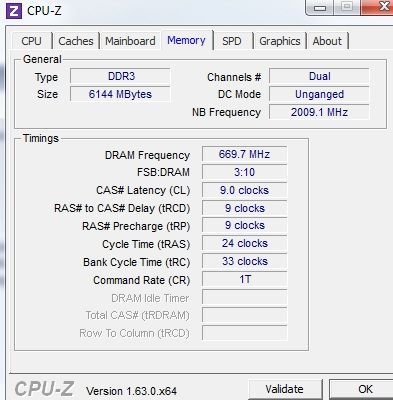
thanks again
-
In the SPD tab, you compare the latencies of the two memories, and manually set the highest value of the two in the BIOS.
Example:
One memory with CL 9-9-9-24 and another with CL 10-10-10-28, so you set the values of the second one in the BIOS.
Salu2!
Intel i5 3570k / ASRock Z77 Extreme 4 / G.Skill F3-12800CL9D-8GBRL / Sapphire HD5850 / Samsung HD103UJ / TR TrueSpirit / NZXT Source 210 / OCZ ZS550W
Intel i5 4570 / ASRock H87 Pro 4 / 2x G.Skill F3-14900CL8-4GBXM / Samsung 850 EVO 250Gb + ST1000DM003 + ST2000DM003 + HGST HDS723020BLA642 + Maxtor 6V250F0 / CM Seidon 240M / Zalman MS800 / CM MWE 550
AMD Ryzen 7 1800X / B350 / 2x8GB Samsung DDR4-2400 CL17 / NVIDIA GTX 1070 8GB / SSD 120GB + ST4000DM004 + ST6000DM003 / EVGA Supernova 650 G2 -
In the SPD tab, you compare the latencies of the two memories, and manually set the highest value of the two in the BIOS.
Example:
One memory with CL 9-9-9-24 and another with CL 10-10-10-28, so you set the values of the second one in the BIOS.
Salu2!
Sorry I wrote badly in the post above, and I couldn't find the edit button. Anyway…
Now I understand XD thanks... it turns out that now I see that both memories have the same value :S but I'll still try to set it manually... now another question, I wanted to increase the voltage a little... and according to CPUZ it has 1.50V
it turns out that in the BIOS I have more digits to enter and I wanted to know if you could make sure exactly how they go since it could be as much as 1.500, 1.050, 1.005.
thank you very much -
hello
here they explain it quite well
regards
Decimal Numeration2
P.D how are you in "red" you can't edit ;D
P.D 2 as you can't edit try to write better from the start, or install a spell checker or click preview before sending. -
The voltage value of the memory in CPU-Z is not reliable, because it only tells you the standard, which in this case for DDR3 is 1.50V.
You can check it on the stickers on the memory itself, although being Kingston they are probably 1.5V.
Set 1.52V to the memory without any fear.
Salu2!
Intel i5 3570k / ASRock Z77 Extreme 4 / G.Skill F3-12800CL9D-8GBRL / Sapphire HD5850 / Samsung HD103UJ / TR TrueSpirit / NZXT Source 210 / OCZ ZS550W
Intel i5 4570 / ASRock H87 Pro 4 / 2x G.Skill F3-14900CL8-4GBXM / Samsung 850 EVO 250Gb + ST1000DM003 + ST2000DM003 + HGST HDS723020BLA642 + Maxtor 6V250F0 / CM Seidon 240M / Zalman MS800 / CM MWE 550
AMD Ryzen 7 1800X / B350 / 2x8GB Samsung DDR4-2400 CL17 / NVIDIA GTX 1070 8GB / SSD 120GB + ST4000DM004 + ST6000DM003 / EVGA Supernova 650 G2 -
sorry that I wrote badly in the post above, and I couldn't find the edit button. anyway…
now I understand XD thanks... I see that both sticks of ram have the same value :S but I'll still try to set it manually... now another question, I wanted to increase the voltage a little… and according to CPUZ it has 1.50V
it turns out that in the bios I have more digits to enter and I wanted to know if you could make sure how exactly they go since it could be as much as 1.500, 1.050, 1.005.
thanks a lothow do you edit topics? sorry for the double post.
I just got a blue screen so I took the opportunity to get into the bios.
there I noticed that pressing + and - increases or decreases the values and from 1.5000 I changed to 1.5150 so I set it like that.
I have no idea if it's correct or not… I hope it's what I wanted to do.. now another thing when I want to change the latencies first it forces me to change a value from the options set DT0, DT1 or both (both), but I have no idea which one to put...
another thing that caught my attention is in DRAM Frequency that is set to auto and when I want to change the frequency it sets as a maximum 800mhz when the frequency of my ram is 1333mhz, is what I'm saying correct or am I wrong and that configuration has nothing to do with the 1333mhz?thanks a lot in advance. and sorry for the ignorance... anyway it's the only way to learn.
-
According to the product sheet on Asus's own website, the motherboard comes with several utilities to overclock it from Windows, which, given the doubts you have, is where you should start.
In any case, that motherboard is very limited for overclocking, despite the stickers Asus puts on it, and when you combine different memories, you add a bit more difficulty to the matter.
Regards! and Good luck
Intel i5 3570k / ASRock Z77 Extreme 4 / G.Skill F3-12800CL9D-8GBRL / Sapphire HD5850 / Samsung HD103UJ / TR TrueSpirit / NZXT Source 210 / OCZ ZS550W
Intel i5 4570 / ASRock H87 Pro 4 / 2x G.Skill F3-14900CL8-4GBXM / Samsung 850 EVO 250Gb + ST1000DM003 + ST2000DM003 + HGST HDS723020BLA642 + Maxtor 6V250F0 / CM Seidon 240M / Zalman MS800 / CM MWE 550
AMD Ryzen 7 1800X / B350 / 2x8GB Samsung DDR4-2400 CL17 / NVIDIA GTX 1070 8GB / SSD 120GB + ST4000DM004 + ST6000DM003 / EVGA Supernova 650 G2 -
According to the product sheet on Asus's own website, the motherboard comes with several utilities to overclock it from Windows, which, given your doubts, is where you should start.
Anyway, that motherboard is very limited for overclocking, despite the stickers Asus puts on it, and when you combine different memories, you add a bit more difficulty to the matter.
Regards! and Good luck
it's just that I don't want to overclock, I just wanted to solve the problem of dxmmm1.sys, which according to a forum I found by googling, was solved by doing a little overclocking on the memory, that's all I wanted.
as I said before, I raised it barely from 1.5000 to 1.5150 and apparently the problem was solved, I've been playing and using the PC for a few hours and it hasn't thrown an error again. Before this, after 10 min or 1 hour it always threw a BSOD error with this problem with the sys.
so for now the problem seems to be solved. Obviously thanks to you, because if I hadn't come to this overclocking forum, I probably wouldn't have been able to do it... I didn't have the confidence to modify the values myself. Thank you very much for your attention and for helping me solve my doubts, with which I have possibly solved the BSOD problem about dxgmms1.sys.
also, I appreciate the information about Asus's utilities, I'm going to take a look to see what I find... because if the problem continues, I'll try to overclock using those utilities...
I leave you a greeting and again I repeat, thank you very much for the help.
-
¡Esta publicación está eliminada!


Hello! It looks like you're interested in this conversation, but you don't have an account yet.
Getting fed up of having to scroll through the same posts each visit? When you register for an account, you'll always come back to exactly where you were before, and choose to be notified of new replies (either via email, or push notification). You'll also be able to save bookmarks and upvote posts to show your appreciation to other community members.
With your input, this post could be even better 💗
Registrarse Conectarse