Ownership and permissions in files and folders in Linux
-
This thread is part of the guide to set up a server on Debian.
Remember that the content of Hardlimit is under Creative Commons license.
In Linux, all files and folders have an owner. The owner is the one who decides who can or cannot modify, view or execute the file. These are the permissions.
The only user who has the ability to read and modify everything is the 'root' user, regardless of the permissions of the file or folder.
To change the owner of a file or folder, the command chown is used. To change the owner of a file, we just have to write:
chown username:group /file/pathOne of the peculiarities of file systems for Linux is that they store these attributes: each file has its permissions and owner associated with it.
On the other hand, there are user groupings (groups). Several users can belong to the same group. It is possible to give permissions to users of a certain group, different from the rest.
In this way, there are three groupings to which permissions can be applied: the owner of the file or folder, the users belonging to the group to which the owner belongs, and the rest of the users. To see the permissions of the files, we write this in the console:
ls -l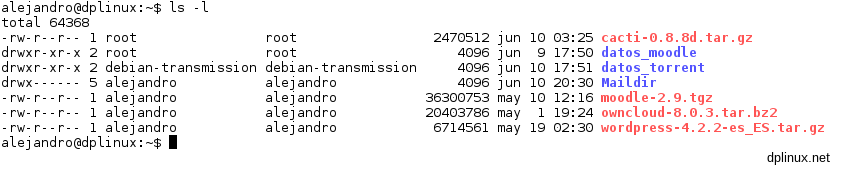
Permissions are represented in the left column (eg: -rw-r--r--). Further to the right are the owner and the group to which the owner belongs, which usually has the same name because there is usually only one user per group (eg: root root). We will see more complex user/group topologies in systems where there are many users. In our server, in principle, we will only have one personal user and users related to the different services intended to isolate, for security, the file system of said services.
Let's focus now on the first column. We see several characters and hyphens in a specific position. The characters mean this:
· d: directory
· r: read permission
· w: write permission
· x: execute permissionThis information is divided into four columns. From left to right, the first one tells us if it is a file or a directory and is made up of a single character. If a 'd' appears, it is a directory. If a hyphen appears, it is a file.
The second column has three characters and corresponds to the permissions of the owner of the file. The first character indicates whether there is a read permission or not, the second one for writing and the third one for execution. If a character appears, for example r, it means that there is permission for reading. If a hyphen appears, it means that the owner does not have permission for reading.
The second column represents the permissions of the users belonging to the owner's group. And the third column is for the permissions for the rest of the users.
If we look at the'moodle-2.9.tgz' file from the example above, we see that it has these characters (from left to right):
-: It is a file (not a directory)
r: The owner of the file can read it
w: The owner of the file can write to it
-: The owner of the file cannot execute it
r: The users of the group can read it
-: The users of the group cannot write to it
-: The users of the group cannot execute it
r: The rest of the users can read it
-: The rest of the users cannot write to it
-: The rest of the users cannot execute itThe simplest way to represent these values is in binary: a zero if there is no permission and a one if there is. Since each field has 3 bits (read, write and execute), the octal system is used that goes from 0 (000) to 7 (111). For example, the value 5 (101) indicates that it can be read and executed, but not written.
In this way, chmod uses this nomenclature to modify the permissions of the files. Initially, the'moodle-2.9.tgz' file from the example has the attributes 644 (110-100-100). If we want the users of the group to not only be able to read the file but also be able to write to it, we will have to modify the second column from 4 to 6, leaving the permissions 664 (110-110-100), we will use chmod like this:
chmod 664 moodle-2.9.tgzObviously, to perform this operation, we must have write permission on said file.
For absolute novices in the subject, the translation from binary to octal and vice versa is:
000=0, 001=1, 010=2, 011=3, 100=4, 101=5, 110=6, 111=7.Toda la actualidad en la portada de Hardlimit
Mis cacharros -
 C cobito referenced this topic on
-
C cobito referenced this topic on
-
C cobito referenced this topic on
Hello! It looks like you're interested in this conversation, but you don't have an account yet.
Getting fed up of having to scroll through the same posts each visit? When you register for an account, you'll always come back to exactly where you were before, and choose to be notified of new replies (either via email, or push notification). You'll also be able to save bookmarks and upvote posts to show your appreciation to other community members.
With your input, this post could be even better 💗
Registrarse Conectarse