Set white background in bash terminal emulator in Debian 9
-
A warm greeting to everyone.
Perhaps you can help me.
I am following this guide by Alejandro:
https://hardlimit.com/guia-servidor-en-debian/I have Debian 9 installed without a graphical environment and I want the console (bash) to have a white background with black letters, but there is no way, when I configure white with setterm or other types of commands, the white is not white, but gray.
When I apply the command:
man bash
at the end of the text it indicates GNU Bash 4.4
In the exDebian forum I have opened a topic to see if anyone knows how to do it, and nothing.
https://exdebian.org/foro/poner-fondo-de-color-blanco-en-bash-debian-930-net-installAlso in the Debian mailing list in Spanish:
https://lists.debian.org/debian-user-spanish/2018/01/msg00016.htmlIn some capture of the guide it has the console with the white background.
https://hardlimit.com/wp-content/uploads/2017/08/debian-9-ssh-login.png
If anyone knows how to do it, I would appreciate the help.
Thanks in advance.
Note: After writing an email to Alejandro he asked me to make the inquiry here, so that you can all benefit from the answer(s).
Edited
-
@bienve In the specific case of that guide, Konsole is used as the console emulator (the one from KDE 4 to be more specific). This allows you to configure profiles by choosing the background and text color:
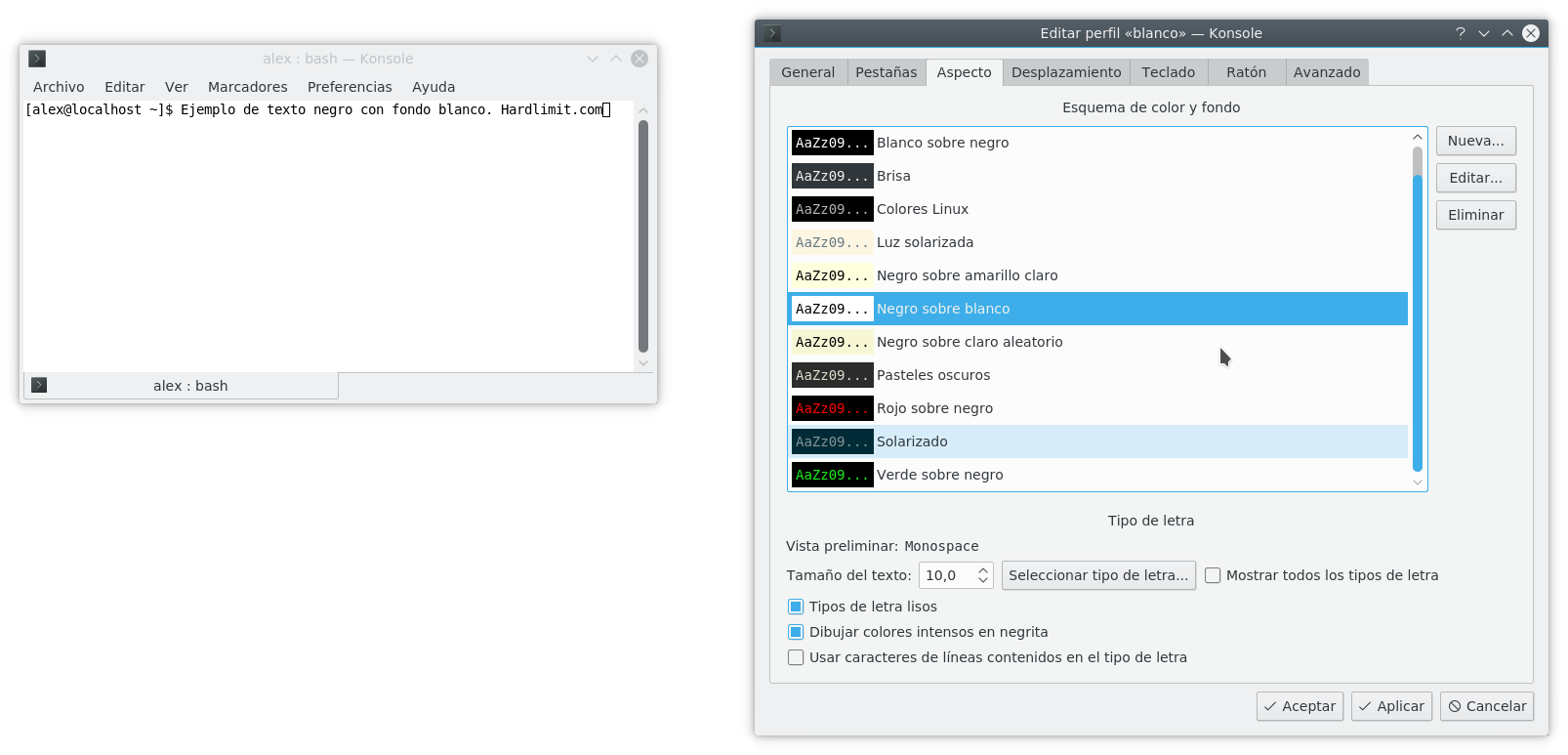
Each emulator has its own configuration and using Debian it is more than likely that you are not using KDE or Plasma. Do you know which emulator you use?
Toda la actualidad en la portada de Hardlimit
Mis cacharros -
Thanks cobito for your contribution.
I am using Debian 9 without a graphical environment, and the terminal emulator it uses is GNU Bash 4.4, as indicated at the end of the text that appears when you run the command man bash.
-
@bienve Prueba con esto: echo -en "\\e]P0ffffff"
· -en enables escape characters
· \\e] is the escape character
· P0 marks the color space (0 to F)
· ffffff is the brightest white. These are the 8-bit RGB levels per channel in hexadecimal.When you have typed it, clear the screen with clear.
Toda la actualidad en la portada de Hardlimit
Mis cacharros -
@cobito works perfectly, thank you very much.
With all the information I have been analyzing these days, and with the contributions that have also been made to me in the exDebian forum, I can now customize it as I wanted.
The only thing missing is that the changes made to the color are permanent, because every time I restart I have to enter the code again.
-
Solved.
Explanation.
From all this:
if [ "$TERM" = "linux" ]; then
echo -en "\\e]P0232323" #black -> this is the background color as well.
echo -en "\\e]P1803232" #darkred
echo -en "\\e]P25b762f" #darkgreen
echo -en "\\e]P3aa9943" #brown
echo -en "\\e]P4324c80" #darkblue
echo -en "\\e]P5706c9a" #darkmagenta
echo -en "\\e]P692b19e" #darkcyan
echo -en "\\e]P7e5e5e5" #lightgray
echo -en "\\e]P8222222" #darkgray
echo -en "\\e]P9982b2b" #red
echo -en "\\e]PA89b83f" #green
echo -en "\\e]PBefef60" #yellow
echo -en "\\e]PC2b4f98" #blue
echo -en "\\e]PD826ab1" #magenta
echo -en "\\e]PEa1cdcd" #cyan
echo -en "\\e]PFdedede" #white -> this is the foreground color as well.
clear #repaint the whole background with the new color
fiWe look at "\\e]P0 and "\\e]P7. The following 6 digits correspond to the hexadecimal color code, where:
P0 is the color for the background, which by default is the hexadecimal code: 232323 P7 is the color for the foreground, which by default is the hexadecimal code: e5e5e5When we indicate:
setterm --inversescreen on
what we do is invert P0 and P7, so that the background becomes gray (e5e5e5) and the text becomes black (232323).
When we indicate any other command of the ones we have analyzed by referring to white, through white or the numerical codes, what it does is call P7, and as it is gray, it never shows white.
So that if we want a white background with black letters, we first look for the type of white and black we want in the hexadecimal code. For this, these resources are useful:
https://es.wikipedia.org/wiki/Colores_web https://www.w3schools.com/colors/colors_hexadecimal.aspAttention: it is important to make the color changes in an order in which the contrast of the background and text is legible, or directly make the change from P0 and P7 at the same time.
As an example, I will use for P0 white: FFFFFF, and for P7 black: 232323. The hexadecimal code can be written in lowercase and/or uppercase.
echo -en "\\e]P0FFFFFF" echo -en "\\e]P7232323"
and if it does not change immediately, we execute:
clear
It works correctly on Debian 9 and CentOS 7.
Update:
If we want the color changes to be by default when we restart, we will follow these steps:
We execute
ls -a
It will show us among other files, the.bashrc and the.bash_profile (the latter in Debian 9 I did not have it)
Now we edit or create the.bash_profile
To edit it:
nano ~/.bash_profile
To create it:
nano.bash_profile
And what do we write inside? Well, it depends on how much we want to customize the bash, we can from introducing all the code that I have quoted above (which affects from P0 to PF), or for the example that I have indicated in this solution, we can write only
echo -en "\\e]P0FFFFFF"
echo -en "\\e]P7232323"
clearWe save the file with Ctrl+O, accept and Ctrl+X to exit nano. We restart the machine and ready.
It works for me without giving execution permissions: chmod +x ~/.bash_profile
If later we want to edit the colors of P0, P7 or other P, we edit the.bash_profile file
Thanks to all for your contributions (@cobito and companions of exDebian).
Regards
-
Thanks for the contribution @bienve.
To initiate commands at the start of a session, you can try editing the.bash_profile file that you will find in your personal folder. There you just have to include the commands you want to execute.
Toda la actualidad en la portada de Hardlimit
Mis cacharros -
@cobito thanks again, but I don't have the.bash_profile file, just the.bashrc, which I tried to modify with the following code before you told me your solution. But it didn't work.
if [ "$TERM" = "linux" ]; then
echo -en "\\e]P0232323" #black -> this is the background color as well.
echo -en "\\e]P1803232" #darkred
echo -en "\\e]P25b762f" #darkgreen
echo -en "\\e]P3aa9943" #brown
echo -en "\\e]P4324c80" #darkblue
echo -en "\\e]P5706c9a" #darkmagenta
echo -en "\\e]P692b19e" #darkcyan
echo -en "\\e]P7e5e5e5" #lightgray
echo -en "\\e]P8222222" #darkgray
echo -en "\\e]P9982b2b" #red
echo -en "\\e]PA89b83f" #green
echo -en "\\e]PBefef60" #yellow
echo -en "\\e]PC2b4f98" #blue
echo -en "\\e]PD826ab1" #magenta
echo -en "\\e]PEa1cdcd" #cyan
echo -en "\\e]PFdedede" #white -> this is the foreground color as well.
clear #repaint the whole background with the new color
fiNow I'm trying with crontab to make a script that changes the background and text color on each reboot.
-
@bienve You can create the.bash_profile file if it doesn't exist (give it execute permissions). If you have used that script as is, you will need to modify it so that the color you want appears. Moreover, I would leave it in its minimal expression because, not using a graphical environment, it is something you are going to want to run always and thus avoid possible problems due to incorrect environment variables:
echo -en "\\e]P0ffffff" clearToda la actualidad en la portada de Hardlimit
Mis cacharros -
Thanks @cobito, it works perfectly.